
GitHub Copilot IntelliJ plugin configuration
Step-by-step guide for installing, authenticating, and customizing the GitHub Copilot plugin in IntelliJ IDEA.
Plugin site
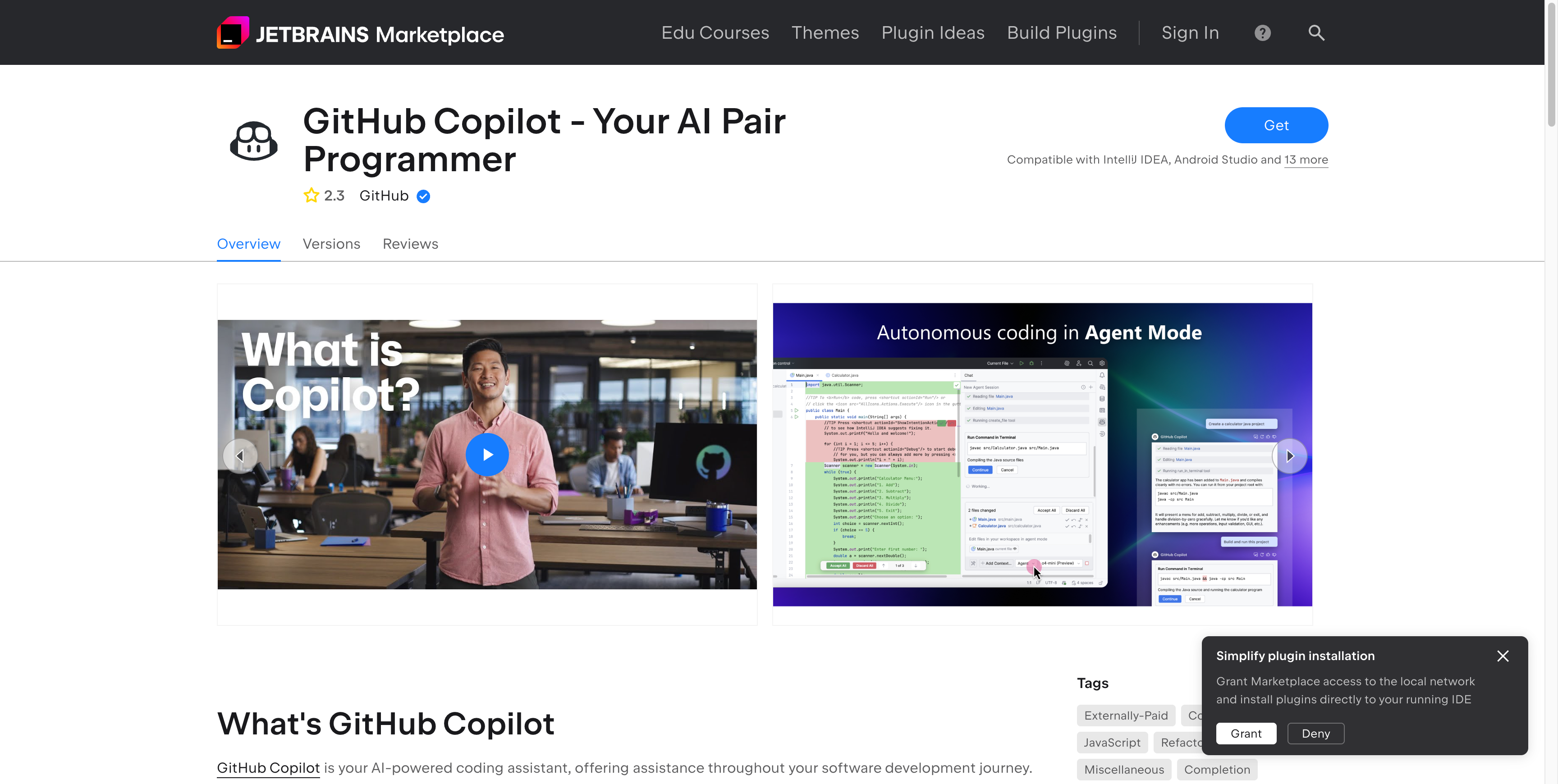
Installing the plugin
- Open IntelliJ IDEA.
- Go to Settings → Plugins → Marketplace.
- Search for GitHub Copilot.
- Click Install and restart the IDE when prompted.
For more details, see Installing the GitHub Copilot extension in your environment.
Authenticating your account
- After installing the plugin, open IntelliJ IDEA.
- A notification will prompt you to sign in to GitHub. Click Sign in to GitHub.
- A browser window will open. Authorize the GitHub Copilot plugin with your GitHub account.
- Return to IntelliJ IDEA. The plugin will confirm successful authentication.
If the notification does not appear, go to Settings → Tools → GitHub Copilot and click Login.
Customizations
Open IntelliJ IDEA Settings → Tools → GitHub Copilot → Customizations.
Copilot instructions
Under Instruction Files, select Workspace to enable repository-specific instructions.
Add a file at .github/copilot-instructions.md in your repository to provide shared guidance for Copilot. This file
is automatically picked up by the plugin and applied to all Copilot interactions in the project.
For more details, see Adding repository custom instructions for GitHub Copilot.
Git commit instructions
Under Instruction Files, select Workspace to enable commit message instructions.
A git-commit-instructions.md file will be created in the .github directory of your repository. Edit this file to
provide specific instructions to GitHub Copilot about how you want it to generate commit messages.
For more details, see Responsible use of GitHub Copilot for commit messages.
Agents files
You can create an AGENTS.md file in the root of your repository to provide instructions to GitHub Copilot coding
agent about how you want it to respond when generating code for that repository. This file can include information
about your coding style, project structure, or any specific requirements you have for the generated code.
For more details, see AGENTS.md.
Prompt files
Prompt files (.prompt.md) let you define reusable prompt templates that can be invoked from Copilot Chat. Store them
in the .github/prompts/ directory of your repository.
Each prompt file is a Markdown file with a YAML front matter header and a body that contains the prompt template. For example:
---
mode: "agent"
description: "Generate a new blog post"
---
Create a new blog post with the given title and content.
For more details, see Using prompt files with GitHub Copilot.